Tools — Calculator, Calendar, Notes and Samridhhi AI
Utilities for quick calculations, business events and follow-ups, notes, and natural-language questions about your data using Samridhhi AI.
Introduction
The Tools section provides utilities that help you perform quick calculations, organize business events and follow-ups, maintain notes, and ask questions about your business using Samridhhi AI.
To access these tools, expand Tools in the left navigation menu and select the required option (Calculator, Calendar, Notes, or Samridhhi AI).
Quick reference
| Tool | Main purpose |
|---|---|
| Calculator | Quick arithmetic with saved history on this device |
| Calendar | Events and customer promises (from Notes) in one view |
| Notes | Follow-ups, commitments, and invoice-linked reminders |
| Samridhhi AI | Natural-language questions about your business data |
Recommended daily workflow
- Calculator — perform quick arithmetic when required.
- Calendar — review upcoming events and customer promises.
- Notes — record important discussions, commitments, and follow-up details.
- Samridhhi AI — ask supported questions to find business information.
For customer commitments, use Notes to maintain the relevant information and Calendar to review date-based follow-ups.
For financial transactions, use the relevant Sales, Purchases, Payments, or Accounting module rather than relying solely on a calculator result or AI response.
Calculator
Overview
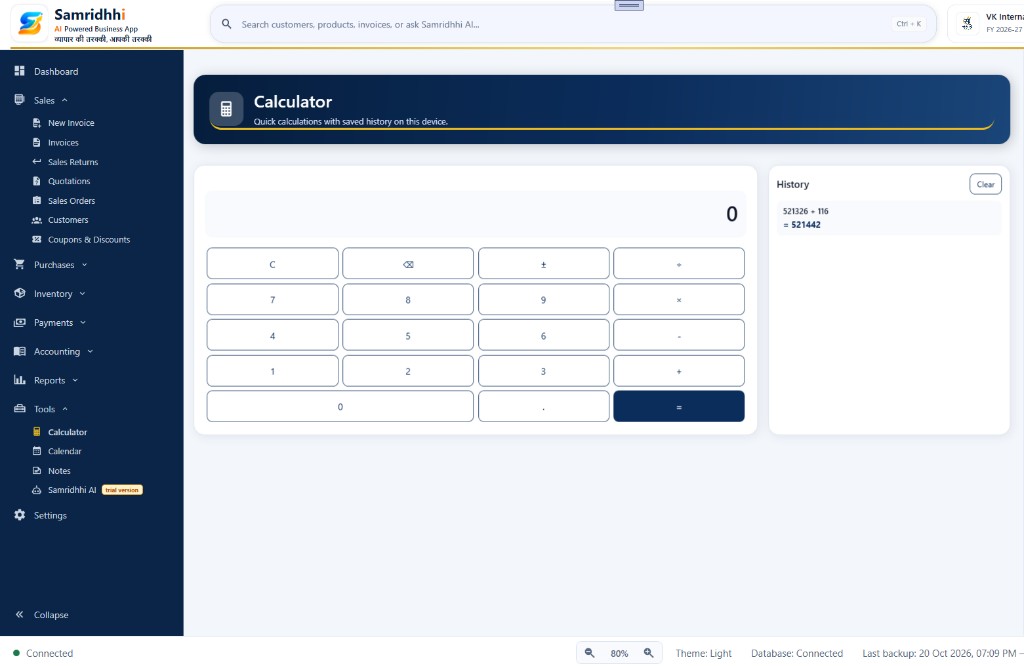
The Calculator provides a convenient way to perform quick calculations without leaving Samridhhi Business App. It also maintains calculation history on the current device, as indicated by the page description.
Calculator interface
The screen contains three main areas:
- Display — shows the current number or calculation result.
- Calculator keypad — numeric keys and arithmetic operations.
- History — previously recorded calculations.
Perform a calculation
- Open Tools → Calculator.
- Enter numbers using the keypad.
- Select an arithmetic operator: addition (+), subtraction (−), multiplication (×), or division (÷).
- Enter the next number.
- Press = to calculate the result.
Key functions
| Key | Purpose |
|---|---|
| C | Clears the current calculation |
| Backspace | Removes the most recently entered character or digit |
| ± | Changes the sign of the current number |
| + | Adds numbers |
| − | Subtracts numbers |
| × | Multiplies numbers |
| ÷ | Divides numbers |
| . | Enters a decimal point |
| = | Calculates the result |
Calculation history
The History panel displays saved calculations, including the expression and its result.
For example: 521326 + 116 = 521442
Use the history to refer to previous calculations without having to remember the result.
Click Clear to clear the displayed history. Check the application's confirmation or resulting behavior before assuming that a cleared entry can be recovered.
Calendar
Overview
The Calendar helps you organize events and customer promises in one place.
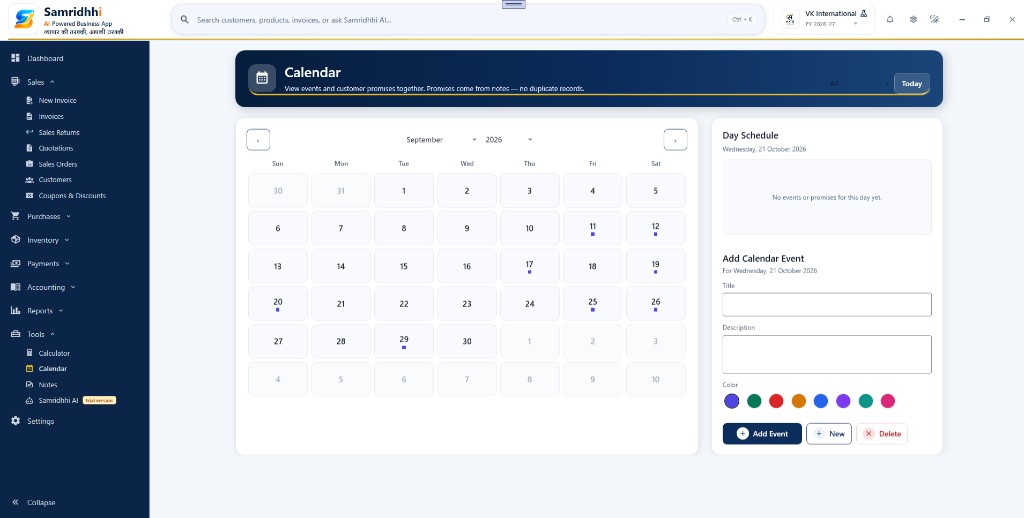
The page description states: “View events and customer promises together. Promises come from notes — no duplicate records.”
This means the calendar can present calendar events alongside customer promises derived from Notes, rather than requiring users to create a duplicate calendar record for every promise.
Calendar interface
The screen contains:
- Month and year selectors — navigate to the required month and year.
- Previous and next buttons — move between calendar periods.
- Date grid — select a date to view its schedule.
- Day Schedule — events or promises for the selected date.
- Add Calendar Event — fields for creating an event.
- Today — returns to the current date, according to the application's behavior.
Navigate the calendar
- Open Tools → Calendar.
- Use the month and year selectors to choose a period.
- Use the previous and next buttons to navigate.
- Select a date in the calendar.
- Review the Day Schedule panel.
Dates containing event markers may have associated events or promises. Select the date to view the corresponding details.
Add a calendar event
The Add Calendar Event panel contains the following fields:
Title — enter a short, meaningful name for the event (for example: follow up with customer, supplier meeting, payment discussion).
Description — additional information about the event, such as the purpose, relevant details, or actions to remember.
Color — choose a color to distinguish the event visually from other calendar items.
Add Event — click after entering the event details.
New and Delete controls
- New — begin a new event entry or reset the event-entry area, according to the application's behavior.
- Delete — delete the selected event when applicable. Review any confirmation displayed before proceeding.
View customer promises
The Calendar can display customer promises originating from Notes. For example, if a customer-related note contains a promise date, the Calendar may show that promise on the corresponding date.
Review the note and its associated customer information when following up. Avoid creating a duplicate calendar event if the promise is already represented by the Notes workflow.
Day Schedule
After selecting a date, the Day Schedule panel displays the events or promises associated with that date.
If the panel states that there are no events or promises for the selected date, review another date or create an event if required.
Notes
Overview
The Notes tool provides a centralized place to record and review business notes.
Notes can help you remember customer follow-ups, payment commitments, invoice-related discussions, sales-return details, and other business activities.
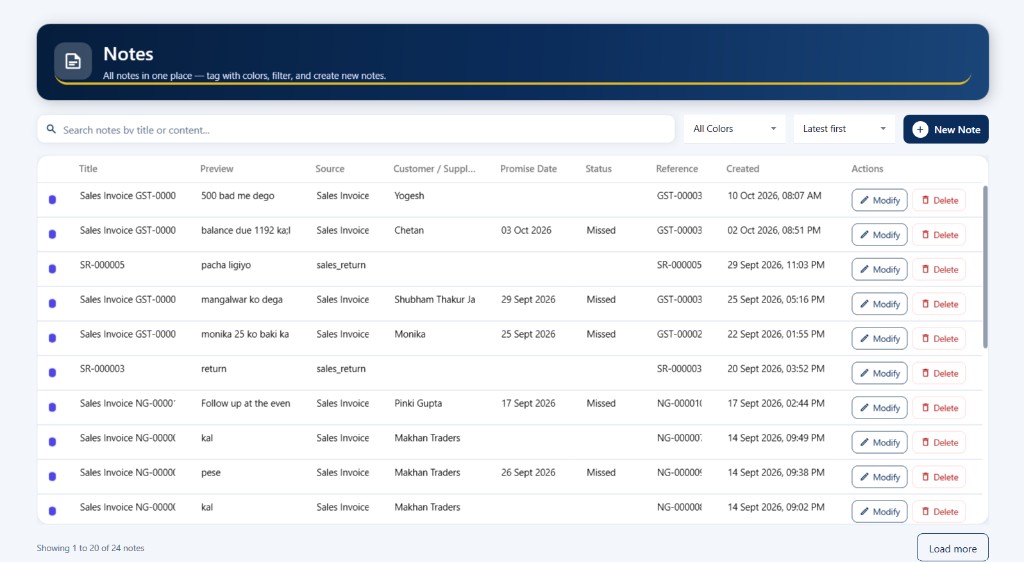
The Notes page supports searching, color filtering, sorting, creating notes, modifying existing notes, and deleting notes.
Notes interface
- Search — find notes by title or content.
- Color filter — filter notes by their assigned color.
- Sort selector — change the order in which notes are displayed.
- New Note — create a new note.
- Notes table — review note details and associated business information.
- Modify and Delete — manage existing notes.
- Load more — load additional notes when more records are available.
Search notes
- Open Tools → Notes.
- Enter a word or phrase in the search field.
- Review the filtered results.
- Open the relevant note using Modify if you need to review or edit it.
The search field is described as searching notes by title or content.
Filter by color
Select a color from the color filter. Use this feature to organize and locate notes according to the color categories used by your workflow. Choose All Colors to display notes across all color categories.
Sort notes
Use the sort selector to change the display order. The interface shows Latest first, which places the most recently created notes at the top of the list. Other available sorting options depend on the installed application.
Understand the Notes table
| Column | Description |
|---|---|
| Color indicator | Displays the note's assigned color |
| Title | The note title |
| Preview | A short preview of the note content |
| Source | The business area or record from which the note originated |
| Customer / Supplier | The associated customer or supplier, when applicable |
| Promise Date | The date associated with a promise, when present |
| Status | The displayed status of a promise, when applicable |
| Reference | The related business reference, such as an invoice or sales-return reference |
| Created | The date and time the note was created |
| Actions | Available actions for the note |
Some columns may be empty when the information is not applicable to a particular note.
Create a new note
- Click New Note.
- Enter the required note information in the form displayed by the application.
- Add a clear title and useful content.
- Select an appropriate color if the form provides that option.
- Enter customer, supplier, source, reference, or promise information when relevant and available.
- Save the note using the form's save action.
The exact fields and validation rules should be followed as displayed in the installed application.
Modify an existing note
- Locate the note using search, filtering, or sorting.
- Click Modify in its row.
- Review the existing information.
- Make the required changes.
- Save the changes using the available form action.
Delete a note
- Locate the note you want to remove.
- Click Delete in its row.
- Review any confirmation shown by the application.
- Confirm only if you intend to delete that note.
Deleting a note may remove information needed for follow-ups. Verify the selected record before confirming.
Load more notes
The page displays a count of the notes currently shown and a Load more button when additional notes are available. Click Load more to display additional records.
Use notes for customer follow-ups
A useful note should contain enough information to make the next action clear. For example, record what the customer promised, the amount or reference involved when relevant, and the intended follow-up date.
When a note includes a customer promise date, that information can be presented in the Calendar workflow. This helps users review commitments and follow-ups from one place without maintaining duplicate records.
Samridhhi AI
Overview
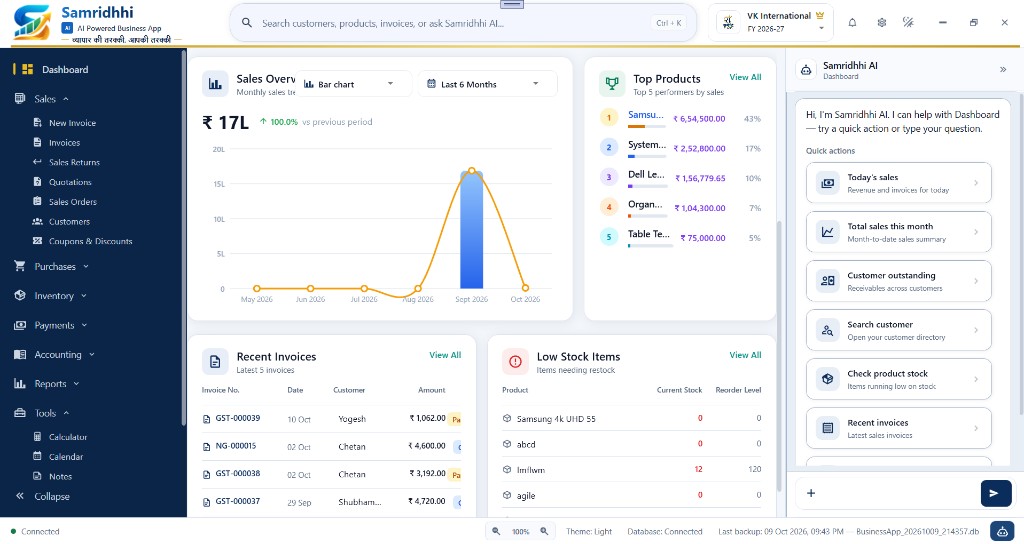
Samridhhi AI provides an assistant interface for asking supported questions about business information.
It is accessible through the Tools section and may also appear as a side panel alongside other application screens. The AI assistant is designed to help users find business information using natural-language questions.
Open Samridhhi AI
- Expand Tools in the left navigation menu.
- Select Samridhhi AI.
- Review the assistant panel and its available controls.
- Enter a supported business question and submit it.
The menu may identify Samridhhi AI as a trial version. Availability and usage may depend on the current license and application configuration. Professional plans include Samridhhi AI; see Licensing & Support.
Ask a business question
Enter a clear question in the message area and click the send button.
Examples of questions to try, subject to supported functionality:
- Find a customer by name.
- Show customers with outstanding balances.
- Look up a product.
- Find information about a business transaction.
Use specific names, references, or other relevant details when available to help narrow the query. You can also use global search (Ctrl + K) to open records from the header; see Application layout.
Review results
The assistant may display information in a structured result card rather than plain text. For example, a customer-related response may contain a count, outstanding balance summary, and customer table.
Review the returned data before taking action. If an action is available on a result card, use it to continue to the relevant business record or workflow.
Quick Questions
Use Quick Questions to access suggested prompts when available. These can help you get started without having to formulate every question from scratch.
Response timing
The assistant may display timing information for a response. Treat this as the reported response duration, not as a guarantee of accuracy or completeness.
Important considerations
- AI responses depend on the supported query types and available business data.
- Review important financial and customer information before acting on a result.
- Use the relevant business module for transactions that require creation or modification.
- For installation, readiness, performance testing, or troubleshooting, refer to Settings → Samridhhi AI in this guide.