Dashboard
The central overview of your business in Samridhhi AI Powered Business App.
The Dashboard provides a quick view of your sales performance, outstanding receivables and payables, profitability, inventory value, cash position, and top-selling products. It helps business owners and staff monitor key business information from a single screen without navigating through individual modules.
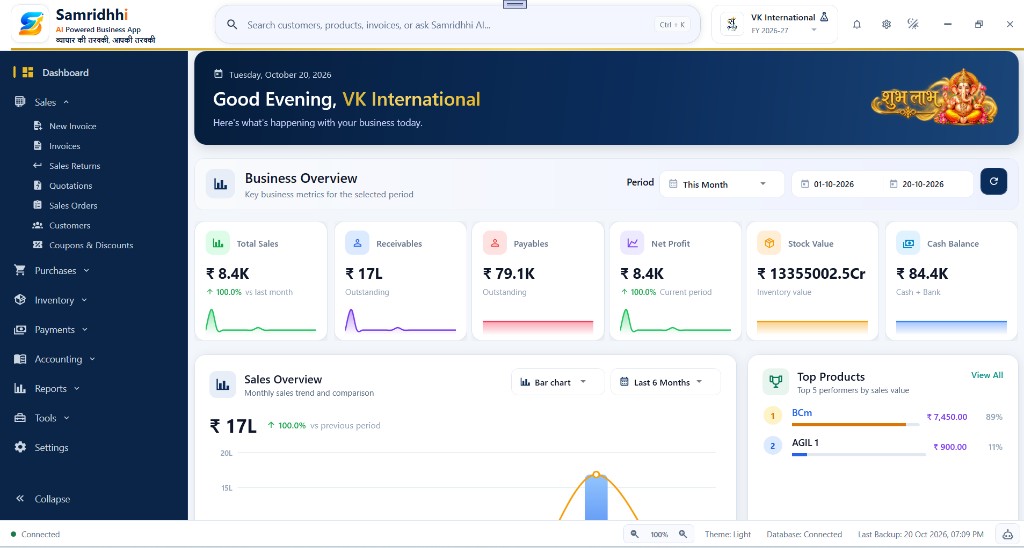
Dashboard header
At the top of the Dashboard, you can see the current date, a personalized greeting, and your company name.
The greeting area provides a welcoming introduction to your daily business overview. During festive periods, it may also display seasonal greetings and branding.
Business overview and date filters
The Business Overview section displays key business metrics for the selected reporting period.
You can use the available period selector and date fields to choose the time range for the dashboard. Use the Refresh button to reload the dashboard for the selected period.
The reporting period helps you review business performance for the time frame relevant to your needs.
Key business metrics
The Dashboard displays six key metric cards. The metric cards may also display comparison indicators, percentage changes, supporting labels, or small trend charts where available.
Total Sales
Displays the total sales value for the selected reporting period. Use this metric to get a quick understanding of your sales performance.
Receivables
Displays outstanding amounts due from customers. This helps you monitor pending customer collections and identify the amount your business is waiting to receive.
Payables
Displays outstanding amounts payable to suppliers. Use this metric to monitor pending supplier payments and understand your outstanding payment obligations.
Net Profit
Displays the net profit metric for the selected reporting period, based on the application's configured calculation. Use this figure as a quick profitability indicator and refer to the relevant reports for more detailed analysis.
Stock Value
Displays the value of inventory held by your business. This provides a quick view of the value associated with your available stock.
Cash Balance
Displays the combined cash and bank balance, helping you monitor your business's available cash position.
Sales overview
The Sales Overview section presents a visual representation of sales performance over time.
- Sales trend chart: View sales performance across reporting periods.
- Chart type selector: Choose the available chart presentation, such as a bar chart.
- Time-range selector: Select the period over which the sales trend should be displayed.
- Sales summary: Review the displayed sales value and its comparison with the previous period.
This section helps you identify sales trends and compare performance across periods.
Top products
The Top Products section highlights the leading products based on sales value.
The Dashboard displays the top five performers, including product names, sales values, quantities, and their relative contribution as shown in the interface.
Use the View All option to access the broader product-performance view, where available.
This section helps you identify products contributing significantly to sales and review their performance.
Main navigation menu
The left navigation panel provides access to the application's business modules.
- Dashboard: Open the main business overview.
- Sales: Create new invoices, view invoices, manage sales returns, quotations, sales orders, customers, and coupons or discounts.
- Purchases: Access purchase-related operations.
- Inventory: Access stock and inventory-management features.
- Payments: Access payment-related operations.
- Accounting: Access accounting features.
- Reports: Open business and financial reports.
- Tools: Access additional application utilities.
- Settings: Configure available application settings.
The navigation menu can be collapsed to provide more space for the main workspace.
Application status bar
The status bar at the bottom of the application displays useful information about the application environment.
- Connection status: Indicates the application's connection state.
- Zoom controls: Adjust the interface zoom level.
- Theme: Displays the current interface theme.
- Database status: Indicates the database connection state.
- Last Backup: Displays the date and time of the last backup recorded by the application.
- Assistant shortcut: Provides access to the available assistant interface.
How to use the Dashboard
- Open the Dashboard after signing in to your company.
- Review the reporting period and select the required dates.
- Refresh the dashboard to load the selected reporting period.
- Review Total Sales, Receivables, Payables, Net Profit, Stock Value, and Cash Balance.
- Examine the Sales Overview chart to understand sales trends.
- Review Top Products to identify leading products by sales value.
- Open the relevant module or report from the navigation menu when more detailed information is required.