Import & Backup
Import master data from Excel, protect your local database with scheduled and manual backups, and use advanced database tools when you move PCs or need a clean start.
Path in the app: Settings → Configuration. Backup and restore controls sit in the Security Database Backup & Restore card on that tab. For full preference options on the same screen, see the Settings → Configuration chapter.
Excel import
Use Download Template and Import Excel on list screens to bring in data in bulk. Supported areas include:
- Customers
- Suppliers
- Products (see product workbook notes below)
- Categories
- Warehouses
- Expenses
- Income
Import steps
- Open the relevant list (for example, Customers or Products).
- Click Download Template to get the correct Excel format for that screen.
- Fill in rows using the exact column headers from the template.
- Click Import Excel, select your file, and review validation messages.
- Confirm the import when the preview looks correct.
Product import workbook
The product template includes two sheets:
- SingleProducts — one row per single-pack product.
- MixedProducts — one row per line inside a mixed outer pack; repeat the same Sku on each line that belongs to one product.
Do not change sheet names or column headers. Re-download the template after app updates if import formats change.
Backup & restore (Configuration tab)
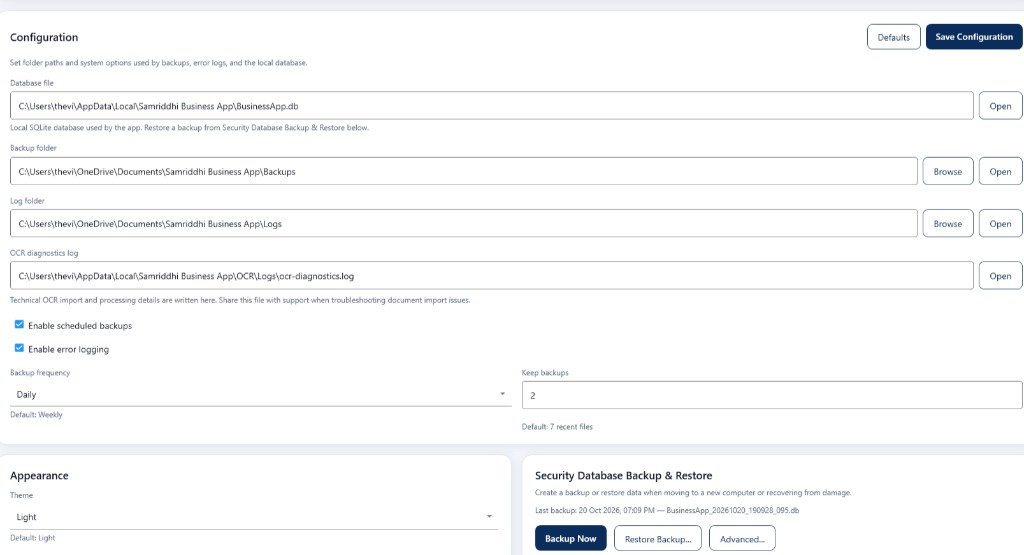
On Settings → Configuration, scroll to the system section to configure paths, logging, scheduled backups, and the backup card.
Paths and scheduled backup
- Database file — read-only path to your local SQLite database; use Open to open the folder in File Explorer.
- Backup folder — where backup files are stored (default under
Documents\Samridhhi Business App\Backups). Use Browse or Open. - Error log folder — optional application error logs (browse/open).
- OCR diagnostic log — path to OCR diagnostic output when bill scanning is used.
- Enable scheduled database backup — automatic backups when the app starts and the schedule is due.
- Backup frequency — Daily, Weekly, or Monthly (default Weekly).
- Retention count — how many recent backup files to keep (default 7).
- Enable error logging — writes errors to the configured log folder.
Click Save Configuration after changing paths or schedule options. Use Defaults on the configuration card only when you intend to reset those system values.
Security Database Backup & Restore
This card is for day-to-day backup and restore:
- Backup Now — creates an immediate backup in your backup folder and updates last-backup status in the status bar.
- Restore Backup… — pick a
.dbbackup file; the app creates a safety copy before replacing the active database (restart may be required). - Advanced… — opens Database Management (security password required) for validated backup, restore, start fresh, archives, and audit folders.
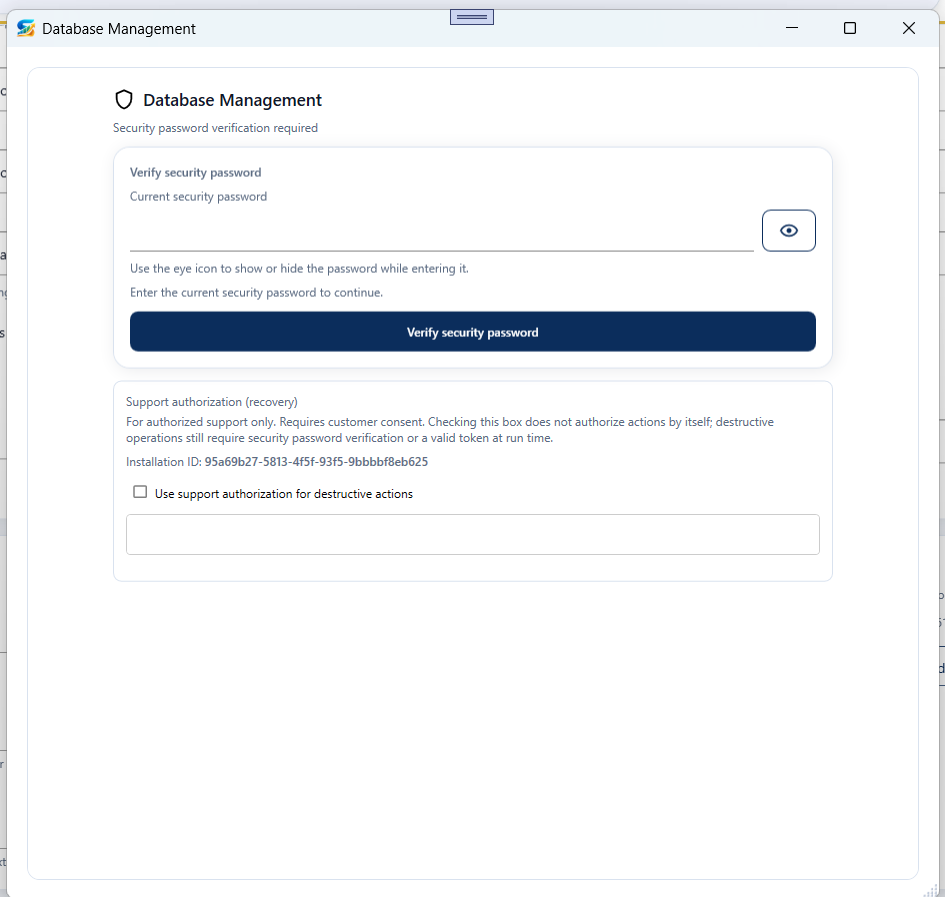
Database Management (Advanced)
Select Advanced… on the Configuration tab. Enter your security password and choose Verify security password before any destructive or recovery action is enabled.
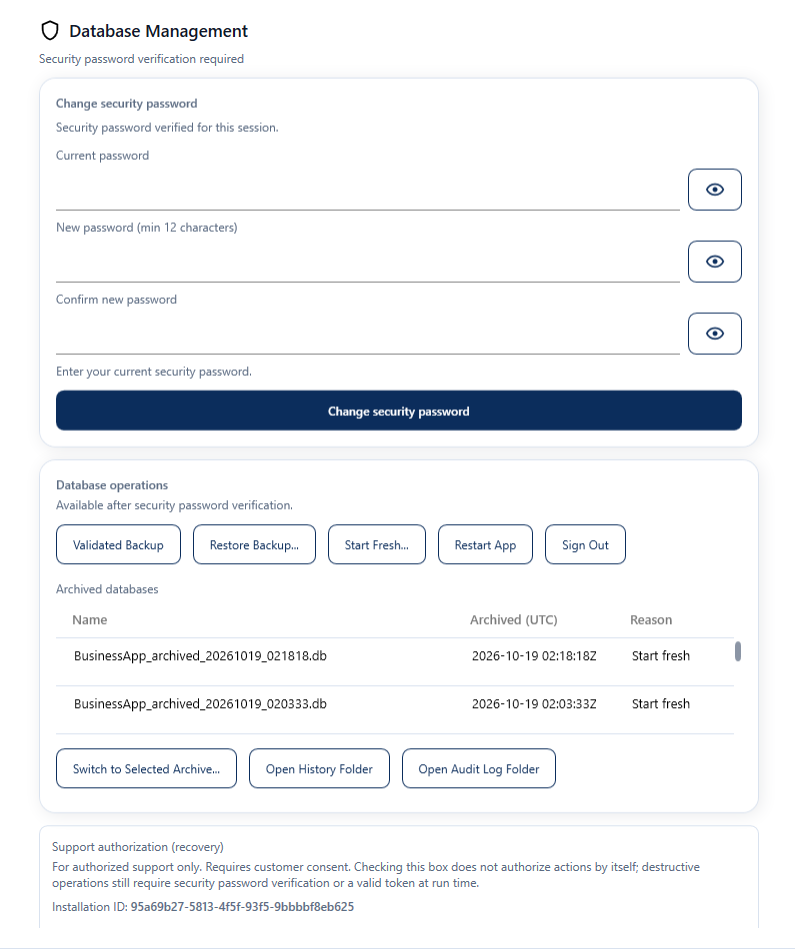
After verification
- Change security password — update the password used for this area (minimum length enforced by the app).
- Validated Backup — creates a backup and verifies it before you rely on it for recovery.
- Restore Backup… — restore from a backup file (same family of workflow as Configuration restore, with administrator verification).
- Start Fresh… — reset to a new empty database (see below).
- Restart App — restart Samridhhi after operations that require it.
- Sign Out — end the verified administrator session in this window.
- Archived databases — list of archived copies with Switch to Selected Archive…, Open History Folder, and Open Audit Log Folder.
Start Fresh (reset complete application data)
Start Fresh… is the controlled way to wipe current business data and begin again on the same PC. It is not the same as uninstalling the app; it replaces the active database with a new empty one after preparation.
When you continue, Samridhhi typically:
- Creates a validated backup of your current database.
- Archives the current database in Database History for recovery.
- Initializes a fresh database using the same migrations and reference seeding as a normal install.
- Validates the new database before switching.
- Schedules a safe restart to apply the change.
Cancel at the confirmation dialog leaves your database unchanged. After a successful start fresh, sign in and set up company data again as you would on first use.
Other features on this topic
- Status bar — connection, database, zoom, theme, and last backup filename/time.
- Appearance on the Configuration tab — theme, language, and display zoom (separate from backup but on the same screen).
- Company Profile → starter categories — import recommended category templates (not Excel list import; see Settings guide).
- App updates — notifications and Settings → About → Check for updates when enabled for your license.
App updates
Samridhhi can check for updates on startup (when your license allows update prompts). Install from the notification or from About in Settings. Updates download from this website and install through the built-in updater.