Settings
Settings & business configuration for Samridhhi AI Powered Business App — company profile, invoices, Samridhhi AI, configuration, and about.
Publisher: The Ultimate Resources
Introduction to Settings
The Settings module lets you configure business information, invoice preferences, the AI assistant, application configuration, and product information. These settings help Samridhhi generate documents with the correct company details and match the app to how you work.
To open Settings:
- Launch Samridhhi AI Powered Business App.
- Select Settings from the left navigation menu.
- Choose the tab you need: Company Profile, Invoice Settings, Samridhhi AI, Configuration, or About.
General settings best practices
- Complete Company Profile first — name, legal details, contact, address.
- Configure categories — import only matching starter templates.
- Review Invoice Settings — numbering, tax, formatting, output.
- Finish AI setup — verify status before relying on AI features.
- Change Configuration carefully — only when needed.
- Check About — note version for troubleshooting.
- Verify after changes — reopen settings and test the feature.
- Maintain backups — follow your backup policy before maintenance.
Quick reference
| Section | Main purpose |
|---|---|
| Company Profile | Business identity, registration, contact, address |
| Business Type & Starter Categories | Templates and suggested categories |
| Invoice Settings | SKU, PDF naming, terms, bank, signatory, messages, paper size |
| Samridhhi AI | Enable AI, install/update, status cards, downloads, performance test |
| Configuration | Preferences, regional defaults, WhatsApp, paths, backups, Database Management |
| About | Version, license, Change License, updates, support contacts |
Company Profile
Purpose
Company Profile stores your business identity for invoices, reports, and other documents. Complete it during initial setup and update it whenever your details change.
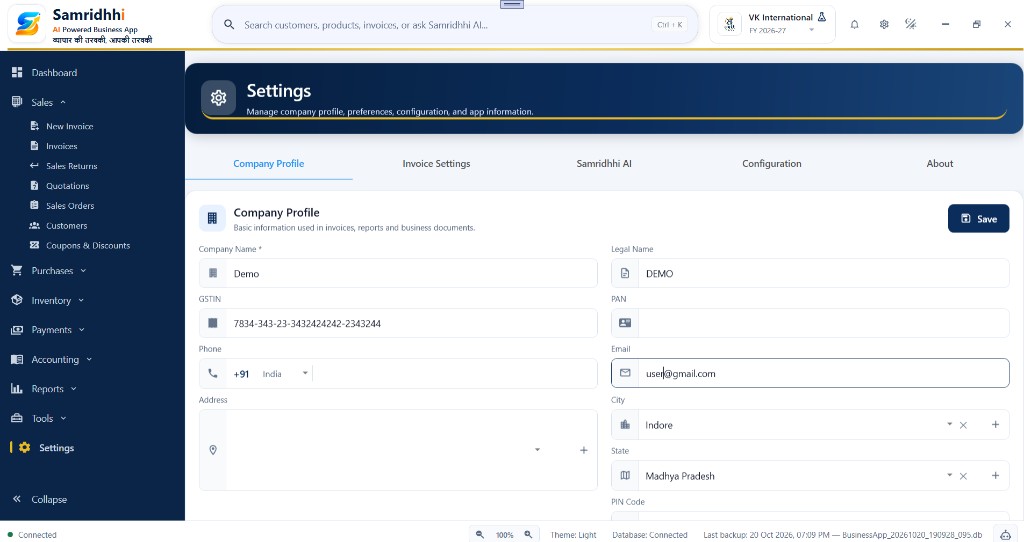
Company information
Company Name (required) — Name under which you operate; may appear on business documents.
Legal Name — Official registered name; keep it aligned with registration and tax records.
GSTIN — Goods and Services Tax Identification Number, if applicable. Verify before using on tax invoices.
PAN — Permanent Account Number where applicable; must match official tax records.
Contact information
Phone — Business number with the correct country code.
Email — Address you monitor for business correspondence.
Business address
- Address — Building, street, and locality.
- City — Select from the list; add a city if the app supports it.
- State — State or union territory.
- PIN Code — Postal code for the address.
- Country — Country where the business is located.
Saving your company profile
- Review all entered information.
- Check spelling of company name and contact details.
- Verify GSTIN, PAN, and address where applicable.
- Select Save.
- Reopen the tab to confirm saved values display correctly.
Business Type & Starter Categories
Purpose
Configure the type of business you run and optionally import suggested product or inventory categories—useful when you do not want to create every category manually.
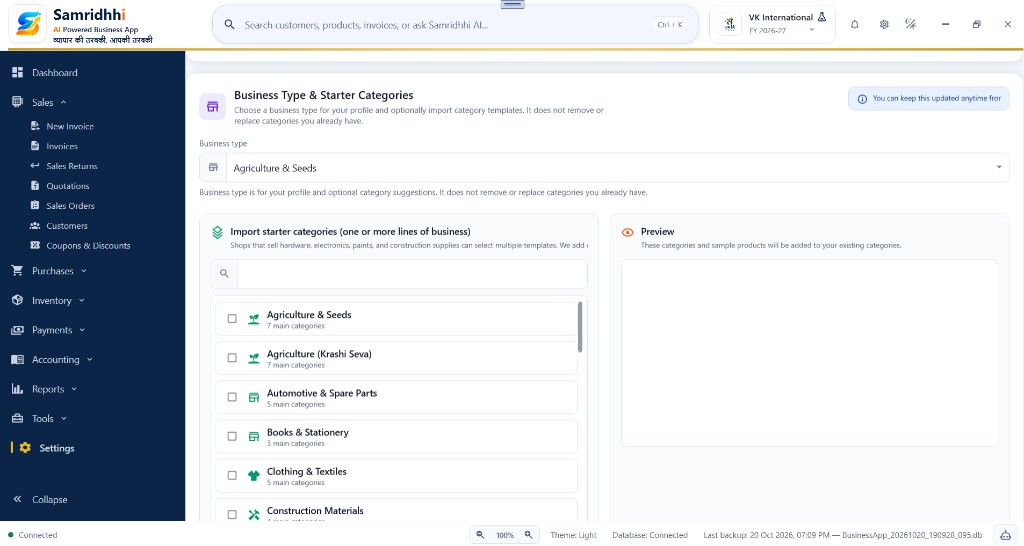
Business type
Select the type that best describes your business (for example Agriculture & Seeds, Automotive & Spare Parts, Books & Stationery, Clothing & Textiles, Construction Materials, or other templates your version provides). This describes your profile and drives category suggestions.
Search business templates
- Click the search field under Import Starter Categories.
- Enter a business type or keyword.
- Review matching templates.
- Select templates that fit your business.
Import starter categories
You can select more than one template if you sell across multiple lines (for example hardware, electrical, and paints). Each template shows its name and how many main categories it includes.
Preview categories
Use the Preview panel to see categories and sample products before importing. Review what will be added to your existing structure.
Important notes
- Import only templates relevant to your business.
- Review the preview before importing.
- Existing categories are not removed or replaced by this setup.
- You can return to business type and starter categories later in Settings.
Recommended: Start with categories for your main activities; add more templates when needed.
Invoice Settings
Purpose
Invoice Settings lets you customize how invoices and bills are prepared, saved, and presented to customers. You can configure display options, PDF file naming, default terms and conditions, bank details, authorized signatory information, footer messages, and paper sizes.
Open Settings → Invoice Settings to access these options.

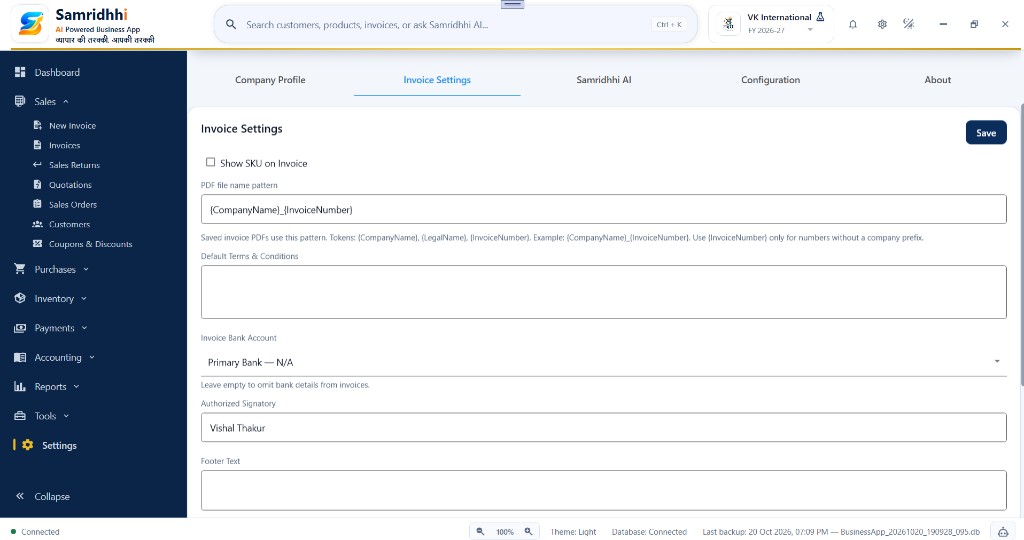
1. Invoice display
Show SKU on Invoice
Enable this option to show the Stock Keeping Unit (SKU) for products on invoices. SKU is an identifier used to distinguish products in your inventory.
Use it when your business identifies products by SKU and wants that identifier visible on customer documents.
2. PDF file naming
PDF file name pattern
Specify the naming pattern used when saving invoice PDFs so exported documents are easy to find and organize.
Tokens shown in the application include:
{CompanyName}— company name{LegalName}— legal name{InvoiceNumber}— invoice number
For example, {CompanyName}_{InvoiceNumber} produces a filename with the company name and invoice number.
Use {InvoiceNumber} alone when you want filenames to contain only the invoice number, without a company prefix.
3. Default terms & conditions
Enter the standard terms and conditions to use on invoices where applicable. You may include payment terms, delivery conditions, or other business policies.
Review the text carefully and confirm a generated invoice shows the expected wording.
4. Invoice bank account
Select the bank account whose details should appear on invoices.
If no account is selected, or the setting is left empty where supported, bank details can be omitted from the invoice.
Before saving, confirm the selected account is correct and suitable to share with customers.
5. Authorized signatory
Enter the name of the person authorized to sign the invoice or business document, where applicable. Verify spelling and designation before generating invoices.
6. Footer text
Enter any standard message to display in the invoice footer—relevant business information or a short customer-facing note.
7. Reverse charge text
Enter the reverse-charge statement required for applicable transactions, if your invoicing workflow supports it.
Ensure the text matches the transaction and applicable GST requirements. Do not use a reverse-charge statement on every invoice indiscriminately.
8. Thank you text
Enter a short closing message for customers—for example, “Thank you for your shopping.” Choose wording that matches your business communication style.
9. Invoice paper size
GST Invoice Paper Size — paper size used for GST invoice output (for example A4).
Non-GST Bill Paper Size — paper size used for non-GST bills (for example A4).
Select sizes that match your printer and verify output using Print Preview.
10. Save your settings
- Review each configured option.
- Select Save.
- Generate a test invoice or bill.
- Verify the filename, product details, terms, bank information, messages, and paper layout as applicable.
Samridhhi AI
1. Introduction
Samridhhi AI is the built-in assistant for Samridhhi AI Powered Business App. It helps you interact with business information using natural-language questions instead of relying only on manual searches and reports. It is designed to provide business intelligence using data in your application.
Key benefits
- Local processing — runs on your computer when required components are available and running.
- Business insights — ask questions about your data and get useful answers.
- Faster queries — Fast AI handles supported business questions efficiently.
- Advanced reasoning — Business AI uses the deeper model for supported analysis tasks.
- Privacy-focused — Settings states that your data stays on this PC and no external data is sent.
- Offline operation — designed for local use after components and models are installed.
2. Open the Samridhhi AI settings page
- Open Samridhhi Business App.
- From the left menu, select Settings.
- Select the Samridhhi AI tab.
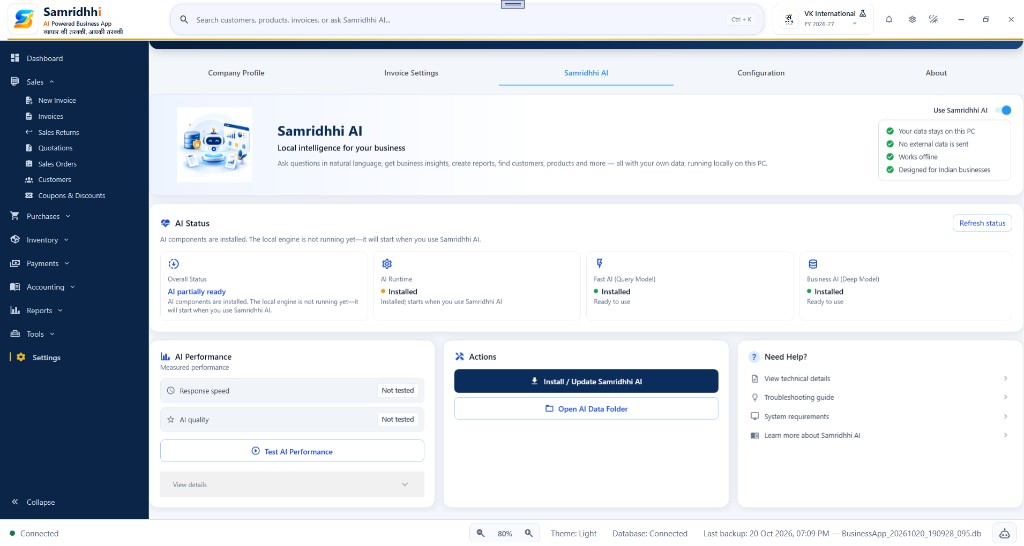
- Review the overview, status, performance, and actions.
The page includes:
- Samridhhi AI overview
- AI Status
- Model Download Progress (when a download is in progress)
- AI Performance
- Actions
- Need Help?
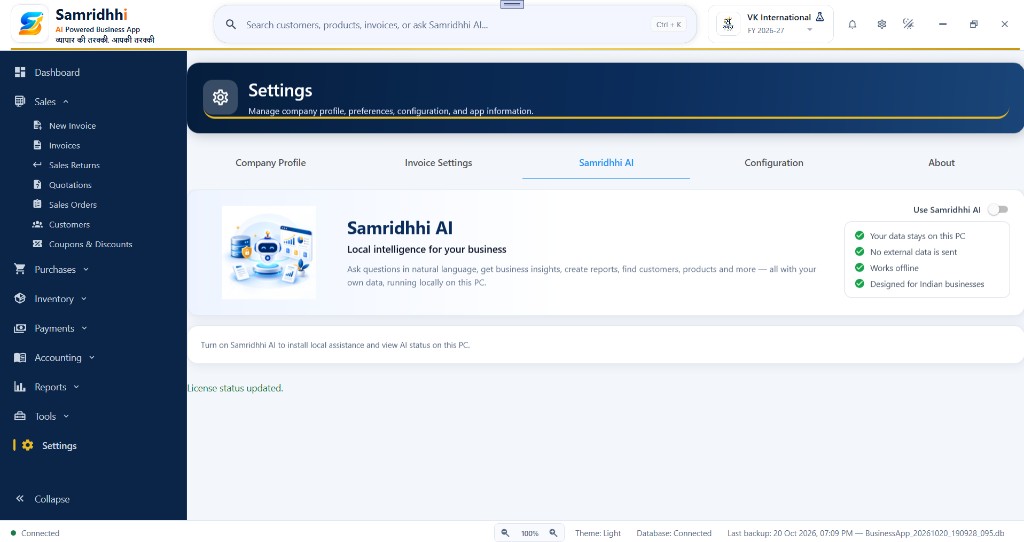
3. Enable Samridhhi AI
In the overview section, locate Use Samridhhi AI.
- Turn on Use Samridhhi AI.
- Wait for the application to update AI status.
- Read the message below the AI Status heading.
- If installation or model setup is required, follow the install procedure below.
Enabling the feature and installing components are separate steps. Turning AI on does not mean every component is already installed or running.
4. Install or update Samridhhi AI
Use this when setting up AI for the first time or when an update or repair is required.
Step 1 — Start installation
- Open Settings → Samridhhi AI.
- Turn on Use Samridhhi AI if it is not already enabled.
- In Actions, click Install / Update Samridhhi AI.
The app checks the current installation and whether components need to be installed or updated.
Step 2 — Wait for model downloads
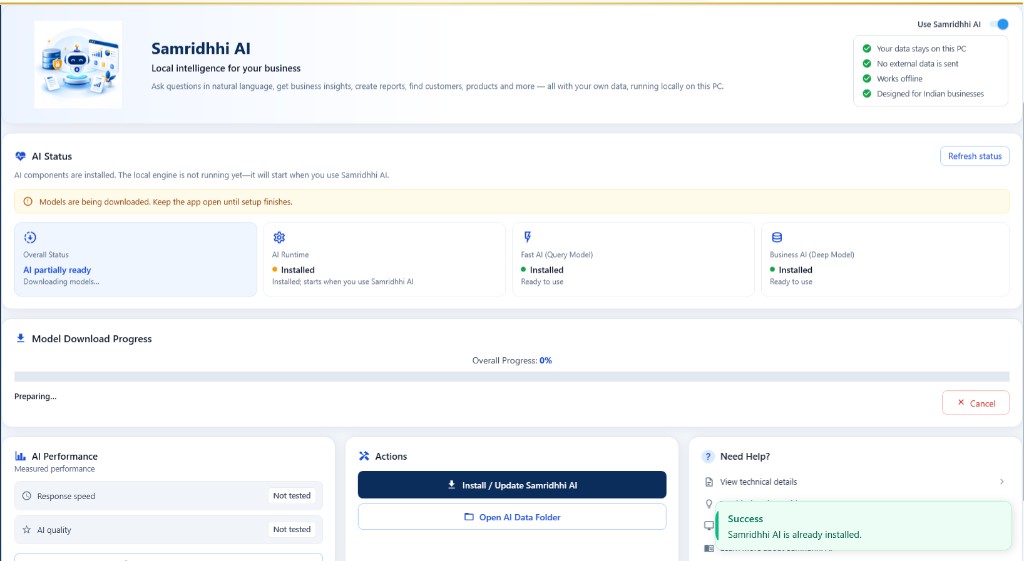
If model files must download, the Model Download Progress section appears. You may see overall progress, a progress bar, a status message (for example “Preparing…”), and Cancel.
Keep the application open until setup finishes. Do not assume installation is complete while progress is still running. If progress stays at 0%, wait for the preparation stage; if it remains stuck, see troubleshooting below.
Step 3 — Confirm installation
When setup completes, review the AI Status cards and any notification. Success means required files are installed; the local engine may still start only when you first use an AI feature.
Step 4 — If installation is cancelled
If you click Cancel, let the app finish handling cancellation and review status before trying again. Do not assume all downloaded files were removed—check status before repeating installation.
5. Understand the AI Status cards
Overall Status — combined readiness (for example AI partially ready when components are installed but the engine is not running yet, or setup is in progress). Read the message under the status.
AI Runtime — local execution component. Installed means components are present; the engine may start when you use Samridhhi AI. Not running does not automatically mean installation failed.
Fast AI (Query Model) — efficient processing for supported queries. Installed and Ready to use means the query model is available; its server may not run continuously.
Business AI (Deep Model) — deeper model for advanced analysis. Installed and Ready to use means the model is available; runtime may start on demand.
Refresh status — requests an updated view after install or update. Refreshing is different from installing components or restarting the engine.
6. Understand model download progress
| Displayed item | Meaning |
|---|---|
| Overall Progress | Progress percentage reported by the current setup operation |
| Progress bar | Visual representation of that progress |
| Status message | Current setup or download stage |
| Cancel | Requests cancellation of the current operation |
For example, “Models are being downloaded. Keep the app open until setup finishes” means setup has not completed. After setup, refresh status and review Overall Status, AI Runtime, Fast AI, and Business AI.
7. Check AI performance
Response speed and AI quality show measurements from the app. Not tested means no measurement has been recorded yet.
- Open the AI Performance section.
- Click Test AI Performance.
- Wait for the test to finish.
- Review the results and any messages.
Duration and results depend on your computer, models, runtime readiness, and the tests in your version. Avoid starting another test while one is running. Use View details when you need more performance information.
8. Manage AI files
In Actions, Open AI Data Folder opens the folder for AI data managed by the application—useful for inspection or approved troubleshooting.
Do not manually rename, move, or delete model or runtime files unless official support instructs you; the app may fail to locate required components.
9. Troubleshooting
AI shows “Not running”
- Confirm Samridhhi AI is enabled and components are installed.
- Try a supported AI task.
- Return to Settings → Samridhhi AI and click Refresh status.
- If the engine still fails, inspect technical details and follow support guidance.
AI shows “AI partially ready”
- Read the message under Overall Status.
- Check AI Runtime, Fast AI, and Business AI.
- If setup is in progress, wait until it finishes, then refresh status.
- If a component stays unavailable, use install or troubleshooting options.
Model download appears stuck
- Keep the app open while setup is active.
- Wait for preparation or download to progress.
- Confirm internet access if downloads are required.
- If progress is unchanged, note the message and contact support before restarting repeatedly.
Installation reports success but AI is unavailable
A success notice may mean components are already installed, not that the engine is running. Refresh status, review all cards, and try a supported AI task. Collect technical details for support if needed.
Performance results show “Not tested”
Run Test AI Performance and wait for the result. If nothing appears, use technical details or the troubleshooting guide.
10. Technical details and support
The Need Help? section may include:
- View technical details — diagnostic information from the application
- Troubleshooting guide — guidance for common issues
- System requirements — documented requirements for Samridhhi AI
- Learn more about Samridhhi AI — additional product information
When contacting support@samridhhi.co.in, include Overall Status, each component’s status, any install or download message, and relevant technical details.
11. Important reminders
- Keep the application open while active setup requires it.
- Initial downloads may require an internet connection.
- Installed components and a running AI engine are not the same thing.
- Use Refresh status to update readiness information.
- Use the performance test for measurements—do not infer performance from install status alone.
- Do not manually remove AI runtime or model files.
- Follow documented troubleshooting if setup or startup fails.
Configuration
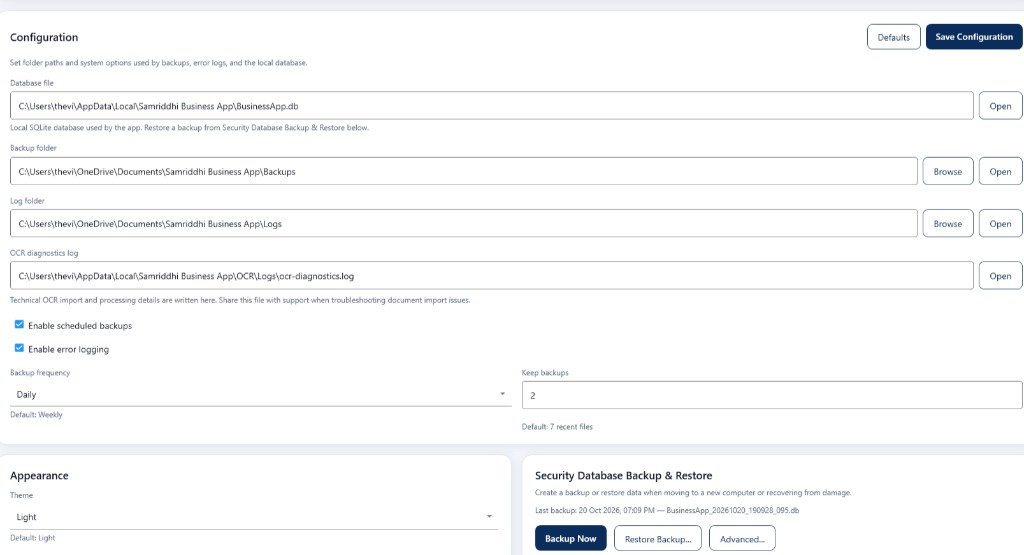
The Configuration tab lets you customize billing, accounting, inventory alerts, regional defaults, payment methods, WhatsApp invoice sharing, system paths, backups, and appearance.
1. Open Configuration
- Open Samridhhi Business App.
- Select Settings from the left navigation menu.
- Select the Configuration tab.
- Review the available sections and change only settings relevant to your business.
- Click Save Preferences to save general preference changes.
2. Billing & Tax
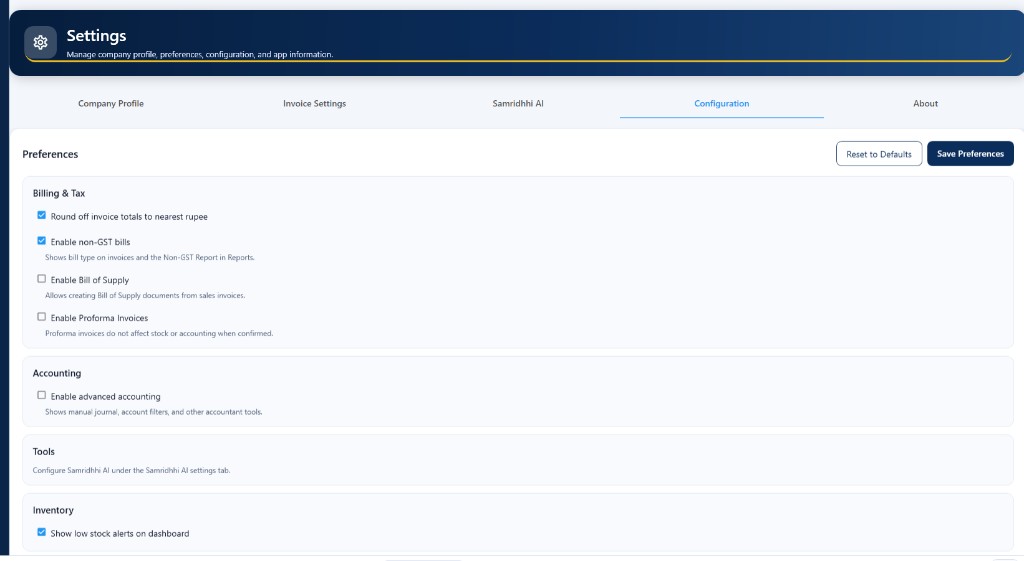
This section controls selected billing and invoice behavior.
Round off invoice totals to nearest rupee — When enabled, totals are rounded to the nearest rupee per the app’s rounding rules. Use if your business prefers rounded invoice totals.
Enable non-GST bills — When enabled, the app supports non-GST bills. Bill type appears on invoices and in the Non-GST Report under Reports.
Enable Bill of Supply — Enables Bill of Supply documents from sales invoices. Enable only when your workflow and tax situation require them.
Enable Proforma Invoices — Proforma invoices are preliminary; they do not affect stock or accounting when confirmed. Enable if you prepare preliminary invoices before final billing.
3. Accounting
Enable advanced accounting — Turns on additional tools such as manual journal and account-filtering features described in the app. Enable when you need them; leave disabled if you do not.
4. Tools
The Tools area directs you to configure Samridhhi AI on the Samridhhi AI settings tab.
- Select Settings.
- Open the Samridhhi AI tab.
- Review AI status.
- Enable Samridhhi AI and install or update components when required.
See Samridhhi AI in this guide for installation, status, downloads, performance, and troubleshooting.
5. Inventory
Show low stock alerts on dashboard — When enabled, the dashboard shows low-stock alerts. Keep it on if you want that visibility when you open the dashboard.
6. Regional settings
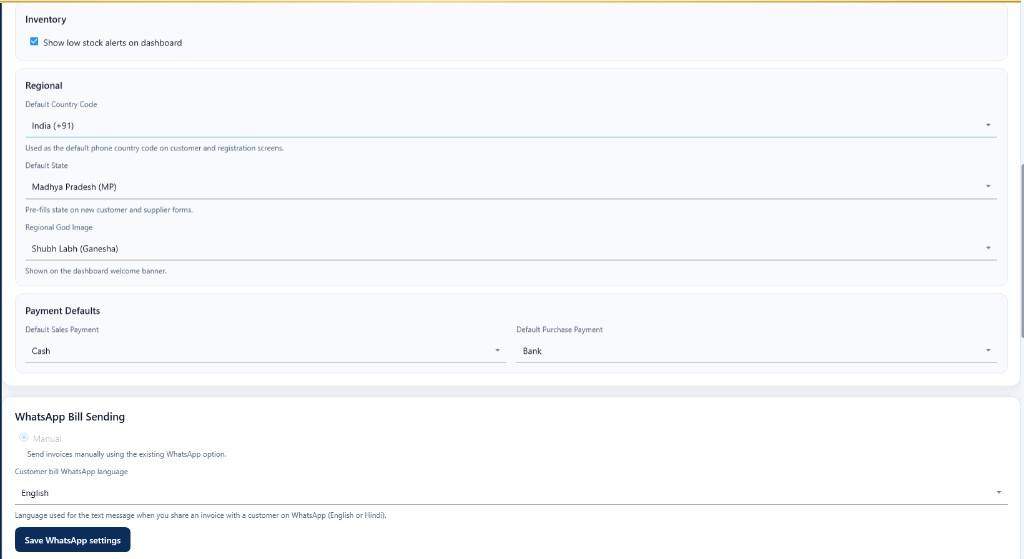
Defaults used on relevant screens in the application.
Default Country Code — Default phone country code on customer and registration screens (for example India +91).
Default State — Pre-filled on new customer and supplier forms. Choose the state your business uses most often.
Regional God Image — Image on the dashboard welcome banner (for example Shubh Labh (Ganesha)). Choose the option that suits your business.
7. Payment defaults
Default Sales Payment — Payment method selected by default for sales (for example Cash).
Default Purchase Payment — Default for purchase payments (for example Bank).
These are starting selections—review and change the method on each transaction when needed.
8. WhatsApp Bill Sending
Manual — Invoices are sent manually using the existing WhatsApp option in the app; this does not imply automatic WhatsApp delivery.
Customer bill WhatsApp language — Language for the message text when sharing an invoice on WhatsApp (English or Hindi). This refers to the message, not necessarily the invoice document language.
- Review your selection.
- Click Save WhatsApp settings.
- Follow any confirmation or error message shown.
9. Save Preferences and Reset to Defaults
Save Preferences
- Review selected options.
- Click Save Preferences.
- Wait for confirmation that changes were saved.
If an error appears, read the message before assuming changes were saved.
Reset to Defaults — At the top of Preferences. Use cautiously; it restores default preference values. Review values after reset and check any on-screen confirmation—the app may prompt before resetting.
10. Database Management and security
Database Management is a separate, security-sensitive area—not an ordinary preference. Open it from Security Database Backup & Restore → Advanced… on the Configuration tab.
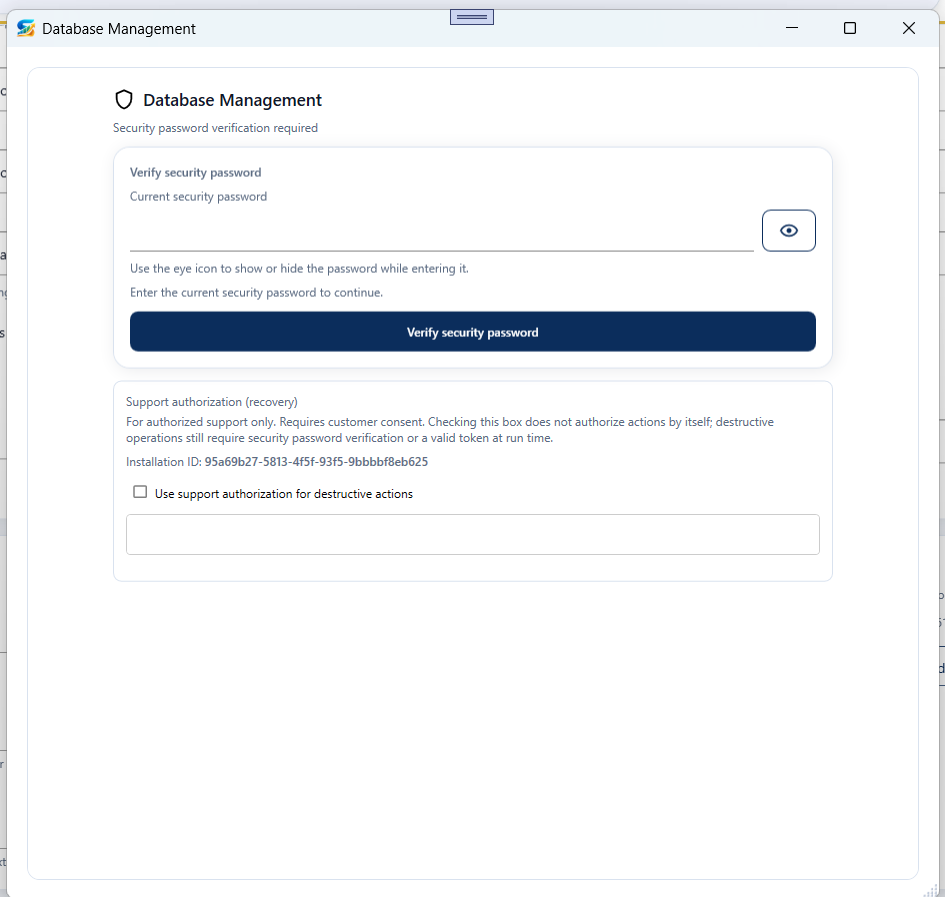
Security password verification
- Enter the current security password.
- Use the eye icon to show or hide the password if needed.
- Click Verify security password.
- Continue only after successful verification.
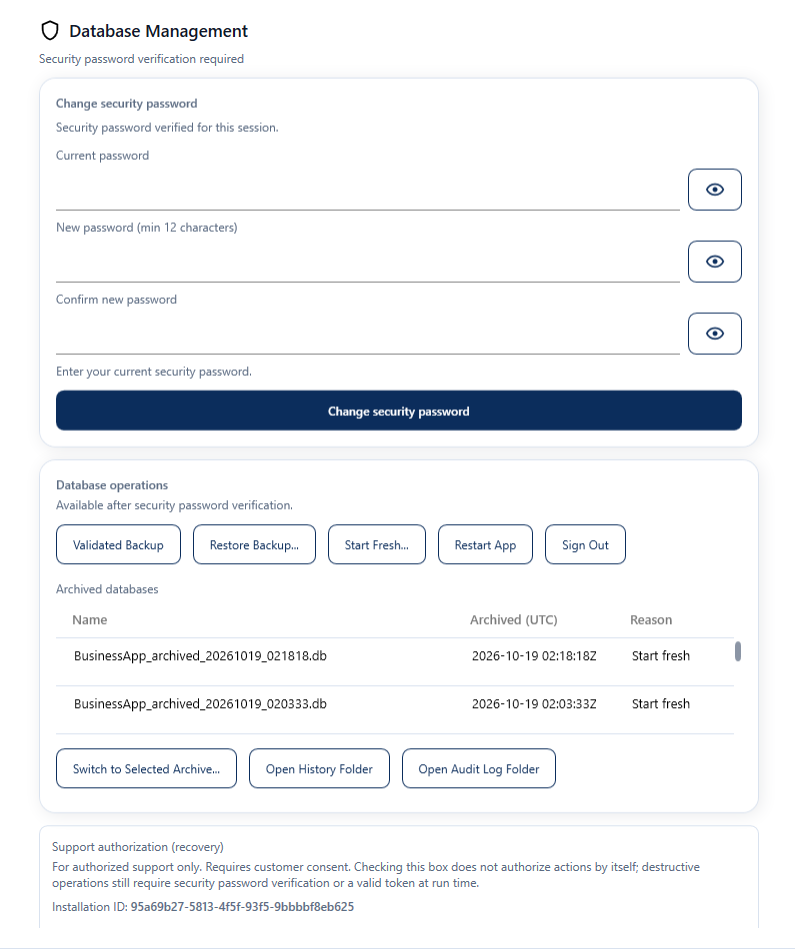
Change security password
After verification, use Current password, New password (minimum 12 characters), and Confirm new password, then select Change security password. Use a strong password and keep it secure.
Database operations
After verification, available actions may include:
- Validated Backup — create a validated database backup
- Restore Backup… — restore from a backup
- Start Fresh… — start fresh (archives existing data per app behavior)
- Restart App — restart the application
- Sign Out — sign out of the current session
The window may list archived databases with timestamps and reasons, and offer Switch to Selected Archive…, Open History Folder, and Open Audit Log Folder.
Support authorization
The Support authorization (recovery) section is for authorized support use. Customer consent is required; checking the option alone does not authorize destructive actions—those still need password verification or a valid token at run time.
Use only through an authorized support procedure. Do not share passwords or recovery tokens with unauthorized people.
11. Recommended configuration checklist
- Billing and tax preferences match your intended workflow.
- Advanced accounting is enabled if required.
- Low-stock alerts are configured as desired.
- Default country code and state are correct.
- Regional dashboard image is selected as desired.
- Default sales and purchase payment methods are appropriate.
- WhatsApp message language is selected and saved.
- General preferences have been saved.
- Database backup and recovery procedures are understood.
About
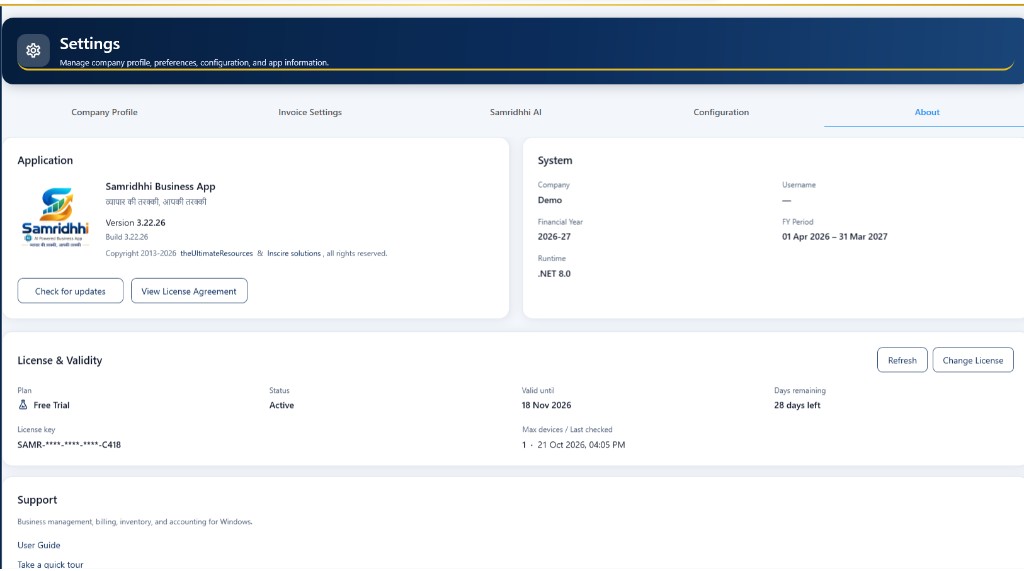
The About tab shows application details, your session, version and build, licensing, and support contacts.
1. About the application
The Application section displays:
- Application name: Samridhhi Business App
- Tagline: व्यापार की तरक्की, आपकी तरक्की
- Version — installed version (for example 3.22.26)
- Build — installed build number
- Copyright — product and owner information
Use version and build when contacting support or reporting issues.
Check for updates
- Open Settings → About.
- Click Check for updates.
- Follow on-screen instructions if an update is available.
Download, install, and restart behavior depends on your installed version—follow what the app displays.
View License Agreement — Opens the license terms. Review them before use and whenever you need to refer to the conditions governing the product.
2. System information
| Field | Description |
|---|---|
| Company | Company currently shown in the application |
| Username | User for the current session, when available |
| Financial Year | Selected financial year |
| FY Period | Start and end dates of that financial year |
| Runtime | .NET runtime version displayed by the app |
Example values in screenshots (such as Demo, 2026–27, .NET 8.0) are illustrative; yours may differ.
3. License & Validity
This section shows your current license:
- Plan — license plan (for example Free Trial)
- Status — current status (for example Active)
- Valid until — expiry date for the displayed license
- Days remaining — days left per displayed information
- License key — masked key (do not share the full key publicly)
- Max devices / Last checked — device allowance and last license check time
Refresh — Requests updated license information. Use when status or validity may be outdated; review updated values and any messages.
Change License — Replaces the key on this device:
- Open Settings → About.
- Click Change License.
- Review the Activate License window.
- Enter the new license key.
- Click Activate.
- Read the result and confirm License & Validity updated as expected.
If you need a key, use the support contact shown in the app. Do not post your full license key in public channels.
4. Activate a license
Before activation, confirm you have the correct key for this installation.
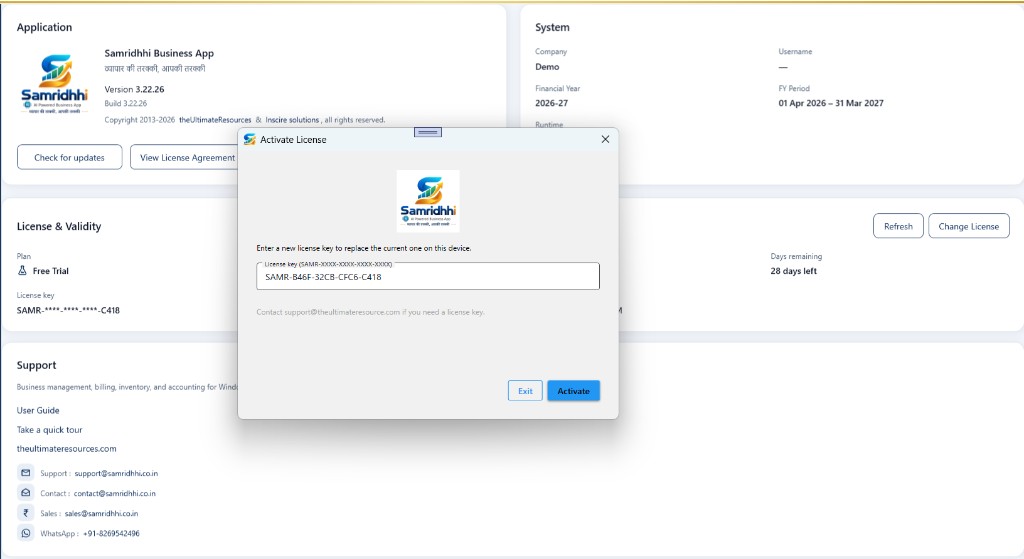
SAMR-XXXX-XXXX-XXXX-XXXX), then Activate or Exit.- Open the About tab.
- Select Change License.
- Enter the license key in the requested format.
- Review the key for typing errors.
- Click Activate and wait for the result.
- Return to License & Validity and review plan, status, validity, and device information.
Keys shown in screenshots are examples only—use the key issued to you.
Exit closes the window without activating. If activation fails, read the error message and contact support if needed.
5. Support and contact information
User Guide — Instructions for using the application.
Take a quick tour — Introductory walkthrough when available.
Website — Additional product information (for example theultimateresources.com as shown in the app).
- Support: support@samridhhi.co.in — technical issues
- Contact: contact@samridhhi.co.in — general enquiries
- Sales: sales@samridhhi.co.in — product or licensing
- WhatsApp: +91-8269542496
For technical issues, include application version, build, a clear problem description, and any error message.
6. Frequently asked questions
How do I check which version is installed? — Settings → About → Application → Version and Build.
How do I check whether my license is active? — License & Validity → Plan and Status.
License information looks outdated? — Click Refresh and review the updated display.
How do I replace my license? — Change License, enter the new key, Activate, then verify status.
Licensing or activation help? — Use support contacts on the About page.
How do I check for updates? — About → Check for updates and follow on-screen steps.
7. Security reminders
- Keep your complete license key private.
- Activate only a key issued or authorized for your use.
- Review the activation result before assuming a license change succeeded.
- Use official support contacts shown in the application.
- Include version and build when reporting issues.