Getting Started
Download, install, and activate Samridhhi AI Powered Business App on Windows.
System requirements
- Windows 10/11 (64-bit) · .NET 8 included in the MSI · Internet for activation · Local SQLite database
Download and install
Pick one method below. Both install the same Samridhhi app. You can also use the Download section on the home page.
Option A · Recommended
MSI installer
One file, straight to setup—best for most Windows PCs.
Steps
- Click Download MSI (or use the home page Download section).
- Wait until the download completes.
- Open Downloads and find SamridhhiBusinessApp….msi.
- Double-click the
.msifile. - If you see Windows protected your PC, follow Windows Security during installation before continuing.
- On the Windows (UAC) prompt, choose Yes.
Option B
ZIP package (MSI inside)
Download a ZIP, extract it, then run the MSI inside—useful for sharing or strict download rules.
Steps
- Click Download ZIP (or use the home page Download section).
- Wait until the download completes.
- In Downloads, find SamridhhiBusinessApp….zip.
- Right-click the ZIP → Extract All… (or open it and choose Extract all).
- Open the extracted folder and double-click the
.msifile inside. - If you see Windows protected your PC, follow Windows Security during installation before continuing.
- On the Windows (UAC) prompt, choose Yes.
Windows Security warning during installation
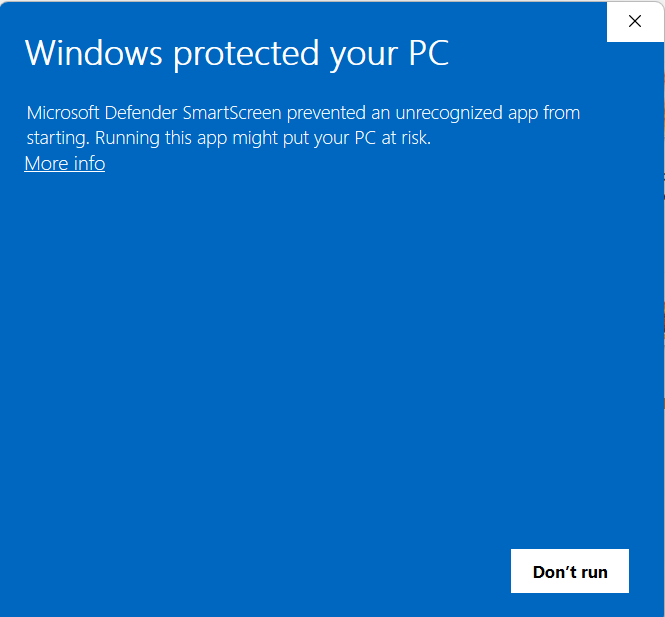
Windows protected your PC
When you run the Samridhhi Business App installer for the first time, Windows may display a Microsoft Defender SmartScreen warning:
“Windows protected your PC”
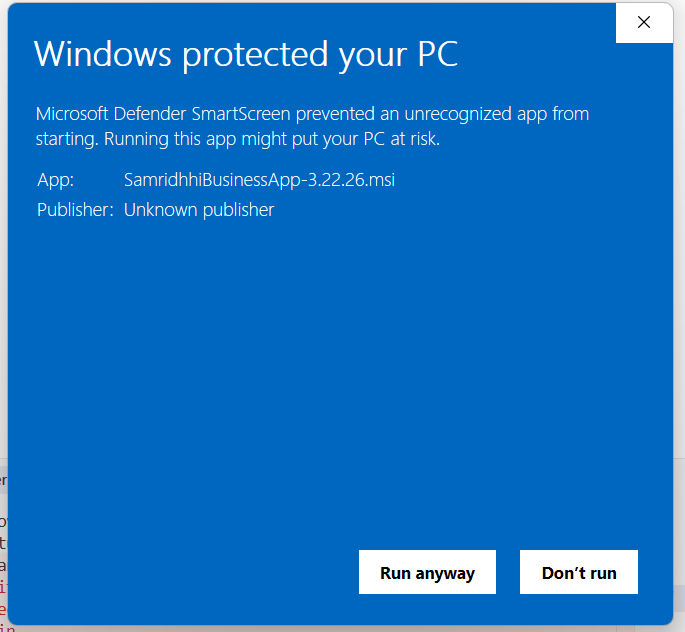
This warning indicates that Windows has prevented an unrecognized application from starting. In the example shown, the installer is identified as SamridhhiBusinessApp-3.22.26.msi, and the publisher may be displayed as Unknown publisher.
This message does not, by itself, prove that the installer is malicious. However, you should verify that the installer came from a trusted source before proceeding.
Step 1: Verify the installer
Before continuing:
- Confirm that you downloaded the installer from the official Samridhhi distribution source (samridhhi.co.in).
- Check that the installer filename matches the version you intended to install.
- Do not run the installer if it came from an unknown website, an unexpected email attachment, or an untrusted source.
- If you are unsure whether the file is genuine, contact support@samridhhi.co.in before proceeding.
Step 2: Open the additional information
On the Windows protected your PC screen:
- Click More info.
- Review the application name and publisher information.
- Confirm that the application is the Samridhhi Business App installer you intended to run.
The expanded warning displays the installer filename and may identify the publisher as Unknown publisher.
Step 3: Choose whether to continue
After clicking More info, Windows may display additional options, including Run anyway and Don't run.
- Run anyway — continue to launch the installer only if you have verified that the file is authentic and trust its source.
- Don't run — cancel the launch if you are unsure about the installer or cannot verify its origin.
If you cannot establish that the installer is genuine, choose Don't run and contact support.
Step 4: Continue with installation
If you have verified the installer and choose to proceed:
- Click Run anyway.
- Follow the instructions displayed by the Samridhhi installer.
- Complete the installation steps.
- Launch Samridhhi Business App after installation finishes.
The remaining installation screens may vary depending on the installer version and Windows configuration.
Finish setup (after MSI or ZIP)
- Installation wizard — Accept the license and use the default folder unless IT tells you otherwise. Wait until setup finishes.
- Launch — Open Samridhhi Business App from the Start menu or desktop shortcut.
Troubleshooting
MSI path
- Installer won't open — Download again; choose Keep if prompted; run the
.msifrom Downloads.
ZIP path
- ZIP won't extract — Re-download, choose Keep, then Extract All. Or switch to Option A (MSI).
- No MSI inside folder — Extract again to a new folder; the
.msishould be in the extracted directory.
Both paths
- Windows protected your PC — See Windows Security during installation. Download only from samridhhi.co.in.
- App won't start — Retry from the Start menu; email support@samridhhi.co.in with the error message.
License activation (first launch)
- Welcome — Overview of Samridhhi.
- License agreement — Accept the EULA.
- Activation — Register for a free trial and enter your key, or paste an existing license key.
Initial setup
- Settings → Company profile (name, GSTIN, address, logo).
- Inventory → categories and warehouses.
- Add products and customers (import or manual).
- Sales → New invoice for your first bill.